

How to Scan Both Sides of an ID Card on a Single PDF Page (Without a Scanner)

If you have ever had to send a "photocopy of your ID" to a government agency, the tax office, your bank or a law firm, you already know the pain. What should be a 30-second task turns into a technical nightmare: you take two photos with your phone, open Word, try to paste them in, they drift around, they end up misaligned, the file weighs 8 MB and when you try to upload it to the e-government portal it tells you "The file exceeds the 2 MB limit".
According to the 2024 Electronic Administration Report (Spanish Ministry of Economic Affairs), a significant share of online procedures in Spain require attaching both sides of the national ID card (DNI). Yet most users do not own a scanner at home, and improvised methods with word processors produce files that are unacceptable both in weight and in professional presentation.
This guide shows you how to create a perfect A4 PDF with your ID card (front + back) in milliseconds, using only your web browser and without installing anything.
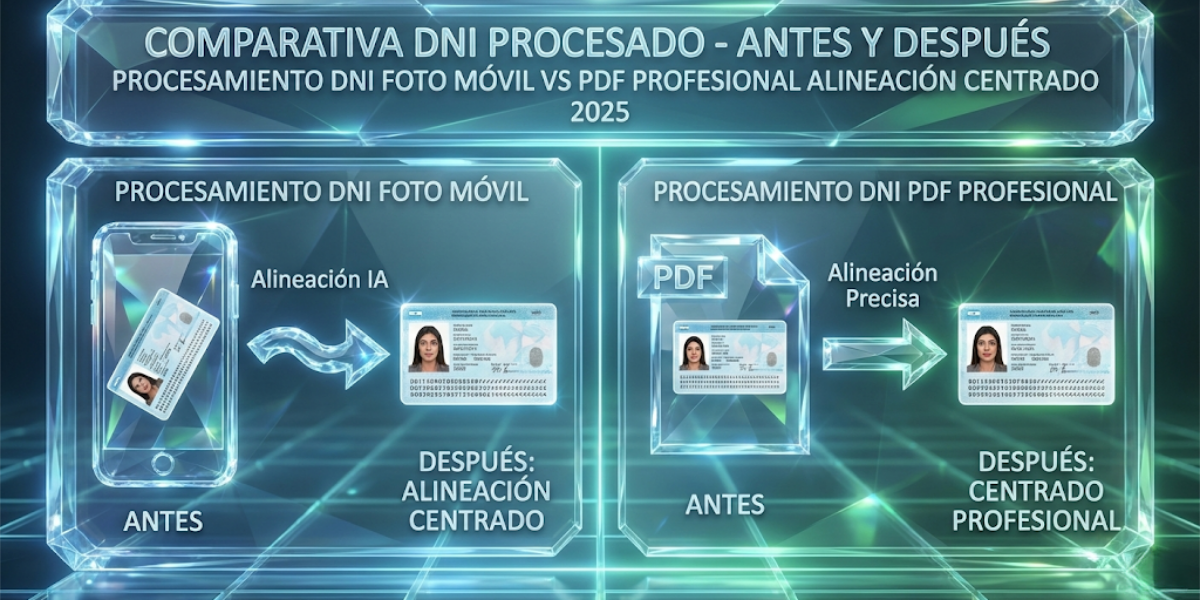
The Real Problem: Why Loose Photos Do Not Work
The Word Nightmare
The "traditional" method that most people try is this:
- Take a photo of the front of the ID with your phone (3-5 MB, HEIC or JPG format)
- Take a photo of the back (another 3-5 MB)
- Open Microsoft Word or Google Docs
- Insert → Image → Select photo 1
- Insert → Image → Select photo 2
- Try to line them up by dragging
- Export to PDF
- Result: a 10 MB PDF with huge, misaligned images
Technical problems with this method:
- Excessive weight: Word and Docs insert images at full resolution (4000x3000 px from your iPhone) with no compression
- Constant misalignment: when exporting to PDF, positions shift unpredictably
- Problematic metadata: phone photos include GPS data, date and device model that can compromise your privacy
- Non-standard format: the resulting PDF is not a real A4 (210x297mm), it is an arbitrary size
The Reality of Spanish e-Government Portals
According to the Ministry of Finance's Electronic Procedures Guide:
| Requirement | Specification | Why it matters |
|---|---|---|
| Maximum size | 2 MB per file | Word PDFs usually weigh 8-15 MB |
| Accepted format | PDF, JPG, PNG | Word sometimes generates proprietary formats |
| Dimensions | A4 (210x297mm) recommended | Non-standard documents get rejected |
| Legible resolution | 150 DPI minimum | Photos compressed by Word come out blurry |
| Orientation | Vertical (portrait) | Horizontal photos get rejected |
Relevant data: a significant share of submissions are rejected on the first attempt because of format or weight problems (according to the Spanish Ministry of Economic Affairs and Digital Transformation, 2024).
The Problems With Attaching Raw JPG Photos
And what if you just attach the two JPG photos without going through Word? That approach has its own problems:
1. Two separate files instead of one
Most online forms only allow 1 attached file for the "ID". If you try to upload the front and the back separately, the system leaves you stuck with half of the document.
2. Inconsistent size and orientation
- Photo of side A: 4032 × 3024 pixels (horizontal)
- Photo of side B: 3024 × 4032 pixels (vertical because you rotated the phone)
The administrative agent who receives this has to rotate one image manually, resize it, and still does not have a standard format to archive.
3. Privacy metadata
Phone photos include:
- Exact GPS location of where you took the photo (your home, most likely)
- Precise date and time
- Device model (iPhone 14 Pro, Samsung S23)
- Camera settings (ISO, aperture, focal length)
Under GDPR (General Data Protection Regulation), exposing this metadata in bureaucratic procedures can be considered over-exposure of personal data.
The Technical Solution: In-Browser Processing
How Client-Side Technology Works
The key difference between the old methods and the modern solution is where the file is processed.
Traditional method (tools that process on external servers):
- You upload your ID to their servers in the cloud
- Their machines process the image
- They return the processed PDF
Risk: your ID is on third-party servers for minutes or hours. Even if they promise "we delete it after 2 hours", you have no guarantees of GDPR compliance.
Modern method (DoctVault and similar):
- You select your ID on your device
- The browser loads the image only into your device's RAM
- JavaScript + the Canvas API process the image locally
- You generate the PDF without the file ever touching the internet
Technologies involved:
- HTML5 Canvas: lets you draw and manipulate images pixel by pixel in the browser
- JavaScript File API: reads local files without sending them to servers
- pdf-lib: generates standard ISO 32000 PDFs from scratch
- WebAssembly (optional): speeds up processing of large images
Critical advantage: your ID never leaves your WiFi. Processing happens in your RAM and is discarded as soon as you close the tab.
The Technical Process Step by Step
1. Reading files (File API)
// The user selects 2 images
const idFront = document.getElementById('front-side').files[0]
const idBack = document.getElementById('back-side').files[0]

// JavaScript reads the files as ArrayBuffer
const frontImage = await idFront.arrayBuffer()
const backImage = await idBack.arrayBuffer()
Result: the images are in RAM, they are not sent to any server.
2. Generating the PDF (pdf-lib)
import { PDFDocument } from 'pdf-lib'

// Create empty PDF
const pdfDoc = await PDFDocument.create()

// Add A4 page
const page = pdfDoc.addPage([595, 842]) // A4 in PDF points

// Place images (pixel-perfect alignment)
// Front side: upper half
// Back side: lower half

// Generate final PDF
const pdfBytes = await pdfDoc.save()
const blob = new Blob([pdfBytes], { type: 'application/pdf' })
Result: a standard A4 PDF with both sides of the ID perfectly aligned and centered, ready to download.
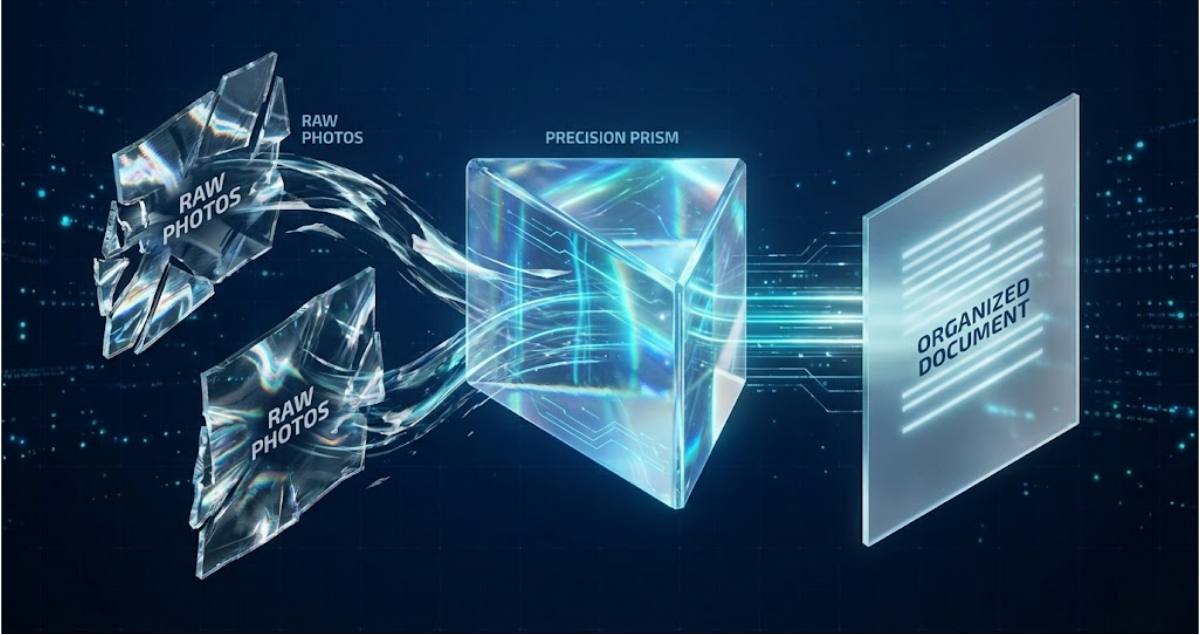
Professional Method vs. Improvised: The Advantages
Full Technical Comparison
| Aspect | Photo + Word | Raw JPG | Web Tool |
|---|---|---|---|
| Final weight | 8-15 MB | 6-10 MB (2 photos) | 300-800 KB |
| Format | Non-standard PDF | 2 separate files | Standard A4 PDF |
| Alignment | Manual, imprecise | N/A | Pixel-perfect |
| Private metadata | Exposed | Exposed | Removed |
| Processing time | 5-10 minutes | 2 minutes | 5-10 seconds |
| Privacy | Low | Medium | High (local RAM) |
Why File Weight Matters
Real limits of Spanish e-government portals:
- Tax Agency (AEAT): 2 MB maximum per file
- Social Security: 5 MB maximum
- Civil Registry: 3 MB maximum
- Electronic notary services: 10 MB maximum
- Banks (online account opening): 2-5 MB typical
If your PDF weighs 12 MB:
- Rejected by the Tax Agency
- Rejected by most banks
- Takes 40 seconds to upload on slow WiFi
- Uses 12 MB of mobile data if you are on 4G
If your PDF weighs 500 KB:
- Accepted everywhere
- Uploads in 2 seconds
- Uses minimal data
Use Cases Beyond the ID Card
1. Vehicle Registration Document
The vehicle registration card (the green card for the car in Spain) also has two sides with critical information:
- Side A: vehicle data (license plate, make, model, chassis number)
- Side B: owner data and inspection dates
Common use: registering the car for insurance, vehicle ownership transfer at the traffic office, applying for scrappage programs (MOVES III).
2. Credit Card (For Verification)
IMPORTANT: never photograph the CVV (3 digits on the back) and never keep full photos of active cards.
Legitimate use: verifying the cardholder on platforms (front side with the numbers covered), banking KYC processes.
3. Certificates and Academic Credentials
Many official certificates (university degrees, courses, credentials) have information on the back: official stamps, authority signatures, issue dates.
Applications: job applications, international credential recognition, professional accreditation processes.
Common Mistakes and How to Avoid Them
Mistake 1: Taking the Photo With Flash
Problem: the phone flash causes reflections on the plastic of the ID card, making the photo unreadable.
Solution:
- Use natural light (a window) or a desk lamp
- Place the ID flat on a white table
- Shoot from 30 cm high without flash
Pro tip: put a sheet of white paper under the ID to improve contrast.
Mistake 2: Dark or Textured Background
Problem: photographing the ID on a wooden table or a patterned tablecloth makes the cropping algorithm fail.
Solution: always use a plain white background (A4 sheet, white tablecloth, white book).
Mistake 3: Shadows on the Document
Problem: shooting with the phone too close or at an angle creates self-shadows on the ID.
Solution:
- Keep the phone 20-30 cm vertically above the ID
- Use diffuse light (overcast day, lamp with a shade)
- If a shadow is unavoidable, turn on Auto brightness in the tool
Mistake 4: Rotating Images Manually
Problem: if you take the ID photo rotated and then rotate it in the phone's gallery, the file may contain rotation metadata that some PDF readers ignore.
Solution: take the ID photo in the correct orientation from the start. If you need to rotate, do it in the web tool (which applies real pixel rotation, not metadata).
Mistake 5: Compressing to JPG Before Uploading
Problem: some phone apps offer "compress image". If you compress a 5 MB photo to 500 KB at JPG quality 40%, you lose critical details (ID numbers, expiry date).
Solution: always upload the original photos to the tool. Smart compression happens after processing, keeping the details readable.
Privacy and Security: Why Client-Side Matters
The Problem With Third-Party Clouds
Many tools that process files on external servers offer free conversion, but:
What happens to your ID when you upload it?
According to the usual privacy policies of these services, files typically stay on their servers for a limited time before being deleted.
- Retention time varies from service to service
- Deletion processes that are not always secure
- Potential access during processing
Questions without a clear answer:
- What does "deleted" mean? Secure wiping or just marked as deleted?
- Who has access during those 2 hours? Employees, APIs, automatic backups?
- Are they GDPR compliant if their servers are outside the EU?
- What happens if their servers get hacked during those hours?
The Advantage of Local Processing
When you use a client-side tool (it runs in your browser):
Data flow:
- Local file → browser RAM
- JavaScript processing
- Generated PDF → direct download
- Close tab → RAM freed
The file NEVER touches:
- Remote servers
- Cloud databases
- Automatic backup systems
- Server logs
- CDNs or proxies
Technical guarantee: if you turn off WiFi/4G after the page has loaded, the tool still works. That is the definitive proof that processing is local.
Privacy Audit (For Technical Users)
If you have some technical background, you can verify privacy yourself:
1. Inspect network traffic:
Open the browser → F12 → "Network" tab → Clear log → Upload your ID → Process
What SHOULD appear: the initial load of the HTML/CSS/JS page. Nothing else during processing.
2. Offline test:
- Load the tool with WiFi active
- Turn off WiFi completely (airplane mode)
- Try to process the ID
If it works → local processing confirmed.
If it fails → it needs a remote server connection.
Step-by-Step Tutorial: Create Your PDF Now
Method 1: From Scratch With Your Phone
Total time: 2 minutes
Step 1: Prepare the setup
- White table or an A4 sheet as the background
- Natural light (a window) or a desk lamp
- Clean ID card (no dust or fingerprints)
Step 2: Photograph the front
- Open the phone camera
- Place the ID horizontally on the white background
- Turn off the flash
- Hold the phone 25 cm vertically above
- Make sure the ID fills most of the frame without getting cut off
- Take the photo with good light
Step 3: Photograph the back
- Flip the ID over (not the phone)
- Repeat the exact same process
- Important: keep the same orientation (horizontal)
Step 4: Upload to the tool
- Open the browser → DoctVault ID on one page
- "Upload front side" button → Select photo 1
- "Upload back side" button → Select photo 2
Step 5: Generate and download
- "Generate A4 PDF" button
- Wait 3-5 seconds (local processing)
- It downloads automatically:
full_id.pdf
Step 6: Check the result
- Open the PDF with your usual reader
- Check that both sides are centered
- Check the weight: it should be <1 MB
- Ready to attach in any procedure
Method 2: With Photos You Already Have
If you already have the photos in your gallery (even old ones):
- Open the web tool
- Upload both images directly
- Turn on "Auto brightness" (useful if the photos are dark)
- Generate PDF
Advantage: you can reuse photos from months ago without having to take them again.
Frequently Asked Questions (Technical FAQ)
Does the generated PDF have legal validity?
Important clarification: in this article, "legal validity" means acceptance for administrative and private contractual purposes. It does not replace certified copies or notarial or judicial procedures.
Yes, for most procedures. The PDF is a digital copy of your physical ID, equivalent to a paper photocopy.
Valid for:
- Administrative procedures (Tax Agency, Social Security)
- Bank requests (account opening, mortgages)
- Private contracts (rentals, employment)
NOT valid for:
- Procedures that require the original physical ID (e.g. in-person census registration)
- Judicial or notarial processes (they require a certified copy)
What if they reject my PDF?
Common rejection reasons (and fixes):
| Reason | Fix |
|---|---|
| "File too large" | Regenerate with High compression |
| "Format not accepted" | Make sure it is PDF, not Word |
| "Blurry image" | Take the photo with better light |
| "One side missing" | Check the PDF contains both images |
Can I use this method for passports?
Yes, with caveats: passports have more pages (photo, data, stamps, visas). You would need a multi-page PDF. For passports, use the merge PDFs tool after photographing each page.
Is it safe to use free web tools?
It depends on how they work:
SAFE (client-side processing): DoctVault, PDF.js (Mozilla), tools that work offline
RISKY (server-side processing): services that require uploading files to external servers, cloud processing platforms
How to tell: if the tool shows "Uploading file..." with a long progress bar, it is server-side.
Does the process work on iPhone/iPad?
Yes, fully.
Compatible iOS browsers: Safari 14+ (iOS 14+), Chrome iOS 90+, Firefox iOS 90+
iOS limitation: Safari iOS has File System restrictions. The PDF downloads to the "Files" app in the "Downloads" folder.
Conclusion: The Definitive Method
The era of the physical photocopy is over. With a smartphone and 30 seconds, you can generate a professional PDF of your ID that meets every administrative standard and keeps your privacy intact.
Recap of advantages:
- Speed: 10 seconds vs. 10 minutes with Word
- Privacy: local processing, your data never leaves your device
- Weight: 500 KB vs. 10 MB for improvised methods
- Polish: automatic pixel-perfect alignment
- Compatibility: standard ISO A4 PDF accepted everywhere
- No installs: works straight in the browser
Next time a procedure asks for a "photocopy of your ID", you know you can generate it in seconds with professional quality and maximum security.
The tools at DoctVault cover every PDF need: from creating the ID PDF to signing documents, protecting with a password, or reducing the weight of heavy files. All processed locally, all free, no sign-up.
Related tools at DoctVault:
External resources:
- FormatVault: optimize photos before creating the PDF - Reduce the weight of ID photos while keeping quality
- pdf-lib: JavaScript library to manipulate PDFs
Was this article helpful?
Share it and help more people manage their PDFs securely
Related Articles

The Dangers of Using Online PDF Converters
Your ID on third-party servers: real privacy risks.

How to Sign a PDF from Your Phone with Your Finger
Sign legally valid documents without printer or scanner.
Protect PDF: Watermark and Password
Add security layers to your sensitive documents.