How to Protect Your Quotes and Designs with Watermark and Password
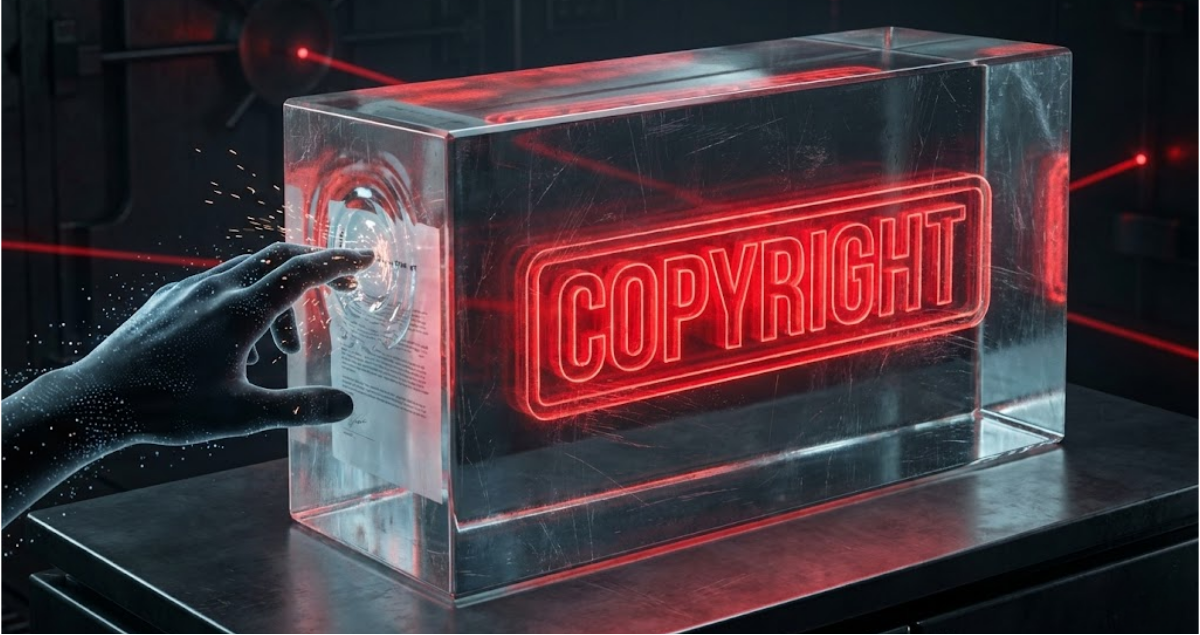
You send a detailed quote to a prospective client. Three weeks later, you find out that they used it to negotiate with your competitor, who now offers the exact same thing but 10% cheaper. Or worse: you share a design draft to get the concept approved and it shows up in another professional's portfolio as if it were theirs.
These are not extreme cases. Many freelancers have had their creative work taken in one way or another. And in consulting and professional services, the detailed quote is the most common industrial-espionage tool there is.
The good news is that protecting your documents does not need expensive software or advanced technical skills. Two basic tools can deter most misuse: the visible watermark and password protection. Knowing when to use each one, and how to combine them, makes the difference between a vulnerable document and one that makes it clear the author knows what they are doing.
The fundamental difference: visual deterrent vs technical barrier
Before jumping into tutorials, it is important to understand what each method actually solves, because mixing them up can give you a false sense of security.
The watermark: psychological deterrent
A watermark does not technically stop someone from copying or sharing your document. What it does is make it clear, in a visible way, who the original author is and that the content is not free to use.
It works through three mechanisms:
1. Undeniable attribution
If your watermark says "QUOTE EXCLUSIVE FOR CLIENT X - DOCTVAULT.ES", anyone who sees that document knows exactly where it came from. Using that quote for something else becomes a deliberately dishonest act.
2. Value degradation
A draft with "DRAFT - DO NOT USE WITHOUT AUTHORIZATION" running diagonally across it loses value as a final piece. Nobody is going to put that in their portfolio because it would look unprofessional.
3. Traceability
If you personalize the watermark per recipient, you will know exactly who leaked the document if it shows up where it should not.
The password: access barrier
Password protection in PDFs works in a completely different way. It uses real encryption (AES-256 in modern versions) to make the content unreadable without the correct key.
PDFs support two password levels:
| Type | Function | Security |
|---|---|---|
| Open password | Without it, the document cannot be opened. Content is encrypted and unreadable. | Very high |
| Permissions password | Allows viewing but restricts actions: printing, copying, editing. | Medium |
🔐 About AES-256 encryption:
Think of a key with 2256 possible combinations. With current technology, trying every combination would take longer than the age of the universe. That is why real attacks target weak passwords, not the encryption itself.
When to use watermark vs password
This is the practical question. And the answer depends on your goal:
| Situation | Recommendation | Why |
|---|---|---|
| Quote for a prospective client | Watermark + unprotected PDF | The client needs to see and evaluate it |
| Design draft for approval | Watermark + low resolution | Enough to evaluate, useless for production |
| Signed contract | Open password | Only the authorized parties should access it |
| Internal confidential report | Password + watermark | Two layers of protection |
| Public professional portfolio | No protection | You want people to see and share it |
| Notarial / legal documents | PDF with no watermark | Marks can invalidate official documents |
The most effective combination:
Use both methods together: watermark as a visible deterrent and password for access control. If someone gets the password, the document is still marked.
Tutorial: add a watermark to your PDFs
Adding a watermark is simpler than it looks. For one-off documents, a tool like DoctVault's lets you add watermarks in seconds:
- Open the watermark tool
- Drag your PDF to the upload area
- Type the watermark text
- Adjust opacity (recommended: 20-35% so it does not cover the content)
- Pick position: diagonal tends to work best for quotes
- Download the watermarked PDF
All processing happens in your browser. The file never leaves your device.
Watermark types by use case

💼 For commercial quotes
- Text: "CONFIDENTIAL QUOTE - [Company name]"
- Position: diagonal across the whole document
- Opacity: 25-30%
- Color: gray or your corporate color desaturated
For design drafts
- Text: "DRAFT - DO NOT REPRODUCE"
- Position: tiled (repeated across the page)
- Opacity: 15-20% (more subtle so it does not ruin the visual review)
- Alternative: also add your logo in a corner
For internal documents
- Text: "CONFIDENTIAL - [Department]"
- Position: header or footer
- Opacity: 40-50% (can be more visible because it is internal use)
🧪 For test versions
- Text: "TEST - NOT FINAL VERSION"
- Position: diagonal
- Opacity: 35%
The single-recipient technique
Professional trick:
Instead of just "CONFIDENTIAL", use "CONFIDENTIAL - PREPARED FOR [CLIENT NAME]". If that document ends up in third-party hands, you know exactly where it leaked from.
This technique is especially useful when you send the same base quote to several prospective clients. Each one gets a version with their name, and if somebody shares it improperly, you have proof of who did it.
Tutorial: protect PDFs with password
Password protection adds a real technical layer of security. But not all protections are equal.
Understanding encryption levels
When you protect a PDF with an open password, the content is fully encrypted. Modern PDF viewers use AES-256, the same standard banks use to protect transactions.
The technical process in plain terms:
- Your password is turned into an encryption key through a hash function
- All the PDF content is encrypted with that key
- Without the right password, the file is a block of unreadable data
- When you enter the password, the same key is generated and the content is decrypted
How to add password protection:
- Open the protection tool
- Upload your PDF
- Enter a strong password (at least 12 characters)
- Pick the protection level:
- Open only (safer)
- Open + permissions (allows viewing but restricts actions)
- Download the protected PDF
Passwords that work vs those that do not
Weak passwords (avoid)
- Dates: 19850315, 2025
- Common words: password, contract, confidential
- Sequences: 123456, qwerty, abcdef
- Personal data: company name, tax ID
Strong passwords (recommended)
- Long phrases: "MyQuote#2025-NewClient!"
- Generated: "kX9$mP2#vL7@nQ4"
- Memorable combinations: "3Cats+2Dogs=Family2025"
Trick for secure and memorable passwords:
Use a phrase that makes sense to you but is unpredictable for others. "CoffeeWithMilk@8AM-EveryDay" is easy to remember and very hard to guess.
Professional workflows
Now that you understand the tools, let's see how to plug them into real workflows.
👨💼 Workflow for freelancers: safe quotes
- Prepare the quote: Build your quote in your usual tool and export it to PDF
- Optimize the size: If it has images, compress it to make sending easier
- Add a personalized watermark: With the target client's name
- Send with context: A professional email that mentions the confidentiality
This workflow adds no more than 2 minutes but cuts down the risk of misuse drastically.
Workflow for agencies: drafts for approval
- Export in limited resolution: 72 DPI is enough to review on screen, useless for production
- Visible but not invasive watermark: 15-20% opacity in tiled mode
- Add contact information: In the footer so they know how to move forward
📋 Workflow for internal legal documents
- Create the PDF from the original: Export from Word, LibreOffice or your word processor
- Protect with an open password: A strong password shared only with authorized people
- Record the distribution: Who has access and with which password
- Version for updates: New version = new password
Real case studies
🏗️ Case 1: The architect and the leaked plans
An architecture firm shared PDF plans with developers during the proposal phase. On three occasions, those plans showed up in competitor projects.
Solution applied:
- Watermark with the recipient developer's name
- Plans in reduced resolution (enough to review, not enough to build from)
- Open password shared verbally, not by email
Result: the leaks stopped. A year later, they traced who had shared the plans thanks to the personalized watermark.
💻 Case 2: The consultancy and the travelling quote
A tech consultancy sent detailed quotes with its own methodology. One client used that quote to have another consultancy copy the approach for less money.
Solution applied:
- Quotes in two versions: executive (without detail) and technical (with full detail)
- The technical version is only shared after an NDA is signed
- Watermark "CONFIDENTIAL - EXCLUSIVE USE [CLIENT]" on both versions
Result: they fully stopped the leakage of proprietary methodology.
Case 3: The designer and the stolen drafts
A freelance designer sent logo drafts for approval. Several clients disappeared after getting the drafts and months later those logos showed up in use.
Solution applied:
- Drafts always in low resolution
- Watermark "TEST - [CLIENT NAME] - DO NOT REPRODUCE"
- 50% upfront payment process before any final files
Result: the conversion rate from proposals to paid projects went up from 30% to 65%.
Frequently asked questions
Can a watermark be removed easily?
It depends on the type. Watermarks added as an overlay layer can be removed with PDF editing tools. Watermarks merged with the content are much harder to remove without leaving traces. Most professional tools, ours included, merge the watermark with the content.
How secure is password protection really?
With AES-256 and a password of 12+ varied characters, security is extremely high. The weak link is never the encryption, but: weak passwords, sharing the password through insecure channels, or leaving documents open on screen.
Can I protect a PDF and add a watermark at the same time?
Yes, and it is the recommended combination for sensitive documents. The ideal order is: first add the watermark, then apply password protection.
Does a watermark affect the legal validity of a document?
For documents that need legal validity (signed contracts, deeds, notarial documents), check with a legal professional. In general, subtle marks do not usually invalidate documents, but marks that cover signatures or critical text can cause problems.
How do I share the password safely?
Never send the password in the same email as the document. Safe options: phone call, SMS or WhatsApp (a different channel), a shared password manager (1Password, Bitwarden), or in person.
Can I protect different pages with different passwords?
The PDF standard does not support per-page protection. A whole PDF has a single protection. If you need different access levels, split the document into several PDFs and protect each one accordingly.
What if I forget the password of a document I protected myself?
If the password was strong, recovering the document can be very hard or impossible. That is why it is key to keep a safe password record and always keep an unprotected copy of the original document.
Do watermarks work if the client prints the PDF?
Yes. The watermark is printed along with the content. That is one of its advantages: it protects both the digital version and the printed copies.
Is there 100% foolproof protection?
No. Any document that can be seen on screen can be photographed. Protection is not meant to be unbreakable, but to: deter casual misuse, leave proof of authorship, and make theft hard enough that it stops being worth it.
Conclusion: protection as part of the professional process
Protecting your documents is not paranoia, it is professionalism. The same clients who could take advantage of unprotected documents respect providers more when they show they know how to take care of their own work.
The watermark and the password are complementary tools:
- Use a watermark when you need the document to be visible but you want to deter misuse
- Use a password when you need to control who can access the content
- Combine both for especially sensitive documents
The process only adds a few minutes to your workflow, but it can save you headaches, financial losses and legal fights. And you can do it all from the browser, without installing software or uploading files to external servers. Start today: next quote you send, add a watermark with the recipient's name.
🔗 Related tools on DoctVault:
- PDF watermark - Add text or image as a watermark
- Protect PDF with password - AES-256 encryption
- Remove PDF password - If you have the original key
- Sign PDF digitally - Legal validity for documents
- Split PDF - Separate documents for different protection
- Compress PDF - Optimize size before sending
- Merge PDFs - Combine documents before protecting
📚 Image optimization resources:
- FormatVault: Professional image format converter - Prepare low-resolution versions of designs for protected drafts
Was this article helpful?
Share it and help more people manage their PDFs securely
Related Articles

Merge and Organize PDFs
Learn how to merge several PDFs into one, reorder shuffled pages and organize scanned documents.

Reduce a PDF by 70%
Compress heavy PDFs without visible quality loss to send by email or WhatsApp.

Sign a PDF with Your Finger on Mobile
Learn how to sign PDF documents straight from your phone with just your finger.