Why You Should NOT Upload Your Payslip or Contract to Online PDF Converters (And the Safe Alternative)

Legal notice: This article is for informational and educational purposes only. It is not legal advice or a regulatory compliance audit.
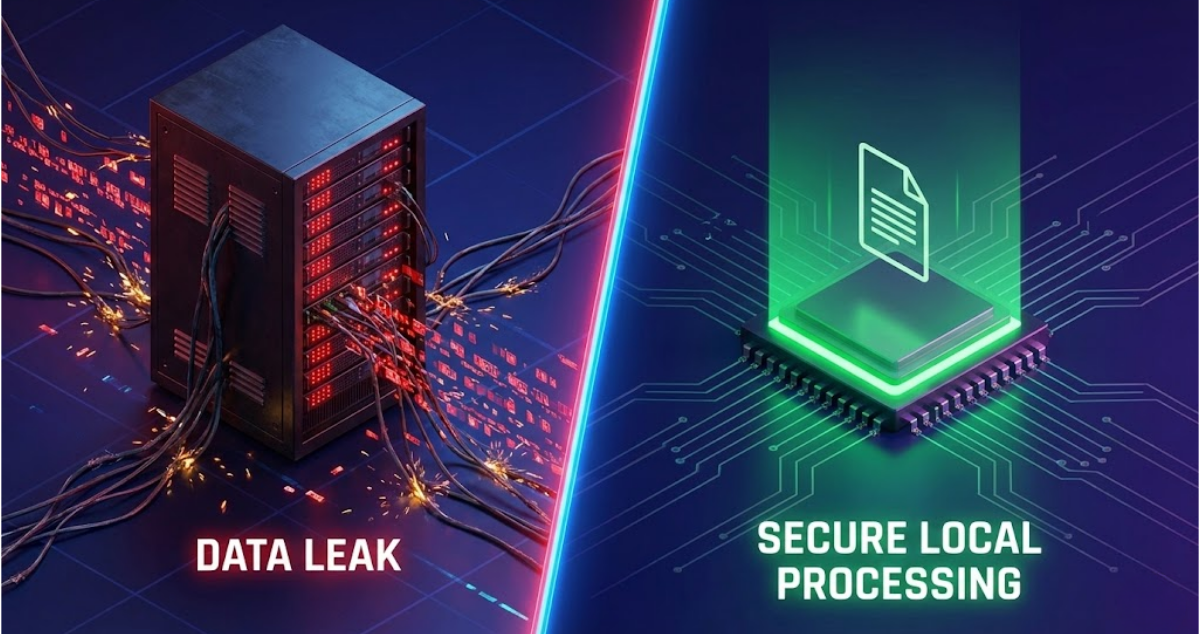
The Holy Grail of digital privacy is being able to process sensitive documents without exposing them to third parties. It sounds obvious, yet large numbers of people upload employment contracts, payslips, ID cards and medical documents to "free" cloud services without understanding the risk they are taking.
According to the 2024 Data Breach Report by Spain's National Cybersecurity agency, a very significant share of personal data leaks in Europe come from misconfigured or compromised cloud services. Free PDF converters are at the heart of this problem: they process huge volumes of files every day containing bank details, medical records and confidential contracts, and in many cases with no encryption or independent audits.
This technical guide explains why you should not trust your privacy to remote servers and how the modern alternative works: local processing in your browser.
The Invisible Problem: What Happens When You Upload a PDF to the Cloud
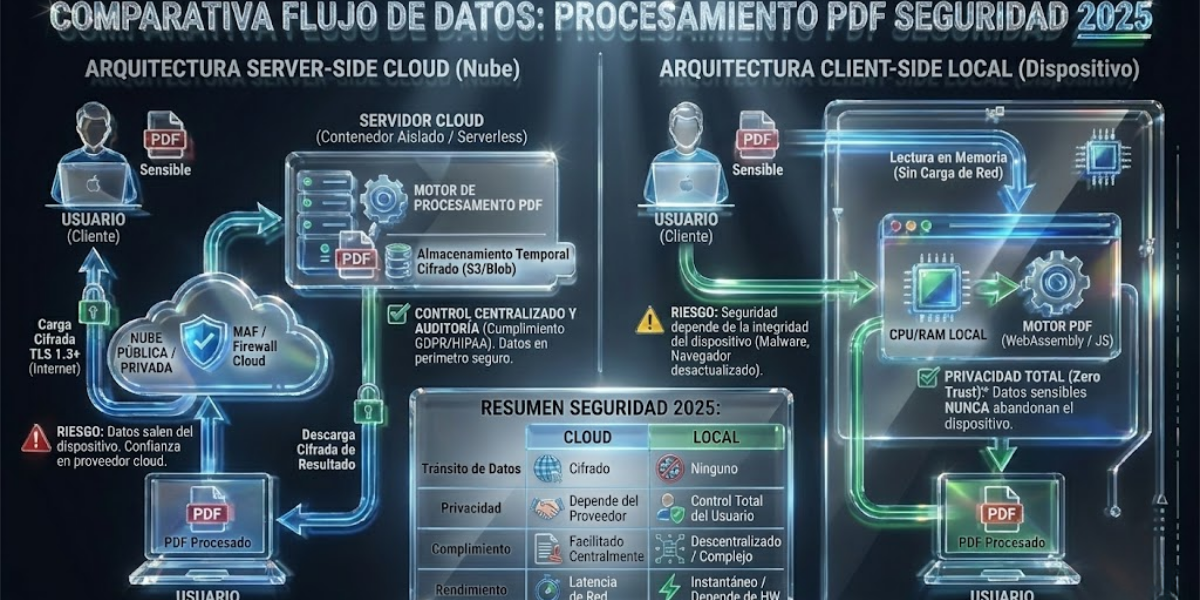
The Traditional Server-Side Architecture
When you use cloud-based conversion services, the data flow looks like this:
1. Upload (to the server)
// Your browser runs code similar to this
const formData = new FormData()
formData.append('file', pdfFile)

fetch('https://example-pdf-converter.com/api/v1/upload', {
  method: 'POST',
  body: formData
})
What it means technically:
- Your file travels encrypted (HTTPS) to their servers
- It is stored temporarily on a disk or an S3 bucket
- It gets a unique ID:
processing-queue-abc123.pdf
Risk 1: during transit, the file passes through several network nodes. HTTPS protects against interception, but the destination server has full access to the content.
2. Processing (remote)
The server runs PDF manipulation software (Ghostscript, PDFtk, pdf-lib on Node.js):
# Example on a Linux server
gs -sDEVICE=pdfwrite -dCompatibilityLevel=1.4 \
   -dNOPAUSE -dQUIET -dBATCH \
   -sOutputFile=compressed-abc123.pdf \
   input-abc123.pdf
What it means:
- The file is fully decompressed in the server's RAM
- Every page, every image, every font is read
- Temporary files are written to disk (swap, cache)
- The content is 100% accessible to employees, logs and backups
Risk 2: even if the company promises to "delete after 2 hours", temporary files can remain in:
- Error logs (if processing fails)
- Overnight automatic backups
- CDN cache (CloudFront, CloudFlare)
- Monitoring systems (New Relic, Datadog)
The Technical Risks of Uploading Documents to the Cloud
Misconfigured S3 buckets: many services store temporary files on Amazon S3 or equivalents. A configuration error (public bucket instead of private) exposes every document to anyone who knows the URL.
Typically exposed documents:
- Medical records with sensitive health data
- Scanned ID cards and passports
- Contracts with financial information
Indefinite storage despite deletion promises: services promise "automatic deletion", but the technical reality is different: overnight backups keep copies, logs record metadata, CDNs cache processed files.
Ransomware attacks on cloud platforms: PDF processing platforms are priority targets for criminals because they hold valuable documents from thousands of companies.
The Myth of "Secure Deletion"
The deletion policies of many cloud services are ambiguous from a technical point of view and do not guarantee secure removal in logs, backups or caches. Publicly announced retention times often do not reflect the real persistence of data in secondary systems.
Technically, "deleting" a file from a server means:
- Soft delete: mark as deleted (file remains on disk, recoverable via forensics)
- Hard delete: remove the filesystem entry (data stays in sectors until overwritten)
- Secure wiping: overwrite with zeros/random (expensive, almost no free service does it)
The Technical Alternative: Client-Side Processing
How Local Processing Works
The modern architecture flips the model: processing happens on your device, not on remote servers.
1. Loading the file (FileReader API)
// JavaScript running in your browser
const fileInput = document.getElementById('pdf-input')
const file = fileInput.files[0]

// Read file as ArrayBuffer (binary)
const arrayBuffer = await file.arrayBuffer()
const uint8Array = new Uint8Array(arrayBuffer)
Critical difference: the file is read directly from your disk into the browser's RAM. No HTTP request, no server, no upload.
2. Processing with pdf-lib (WebAssembly)
import { PDFDocument } from 'pdf-lib'

// Load PDF into memory
const pdfDoc = await PDFDocument.load(uint8Array)

// Example: remove page 3
pdfDoc.removePage(2) // 0-based index

// Generate modified PDF
const pdfBytes = await pdfDoc.save()
Key advantage: the file never touches the network. If you turn off WiFi during the process, it keeps working.
3. Direct download (Blob URL)
// Create a temporary download link
const blob = new Blob([pdfBytes], { type: 'application/pdf' })
const url = URL.createObjectURL(blob)

// Simulate download click
const link = document.createElement('a')
link.href = url
link.download = 'modified_document.pdf'
link.click()

// Free memory
URL.revokeObjectURL(url)
Result: the modified PDF is saved straight to your Downloads folder. No intermediary server has access.
Comparison: Server-Side vs Client-Side Architectures
| Aspect | Server-Side | Client-Side |
|---|---|---|
| Location | Remote servers | Your browser's RAM |
| Network traffic | Upload + Download | 0 bytes |
| Content access | Employees, logs, backups | You only |
| Persistence | Hours/days | While the tab is open |
| Speed | 5-30 seconds | 1-3 seconds |
| Works offline | ❌ No | ✅ Yes |
Technical Privacy Check
If you have some technical background, you can verify for yourself that processing is local:
Test 1: network traffic inspection
- Open DoctVault Merge PDFs
- Press F12 → Network tab
- Clear the log (🚫 button)
- Upload 2 PDFs and process
- Expected result: ZERO HTTP requests during processing
Test 2: offline processing
- Load DoctVault with WiFi on
- Turn off WiFi completely (airplane mode)
- Try to process a PDF
Expected result: if it works without internet, the processing is 100% local.
Legal Risks: GDPR and Liability
The European Legal Framework (GDPR)
According to the General Data Protection Regulation (GDPR), the current European rulebook:
Article 5(1)(f) - Integrity and confidentiality:
"Personal data shall be processed in a manner that ensures appropriate security of the personal data, including protection against unauthorised or unlawful processing."
Article 32 - Security of processing:
"The controller shall implement appropriate technical and organisational measures to ensure a level of security appropriate to the risk, including the pseudonymisation and encryption of personal data."
What this means in practice:
If you upload your payslip (it contains bank details, which is personal data) to a cloud processing service:
- You may carry responsibility for making sure that data is processed in line with GDPR
- The service acts as a "processor" (it must guarantee security)
- If a leak happens, there may be shared liability depending on context and on how GDPR is interpreted
When Cloud Converters ARE OK to Use
Not every document is confidential. These cases are low risk:
- Public documents: commercial brochures, presentations for public events
- Non-personal content: PDFs of cooking recipes, user manuals
- Testing and samples: example files for development
Rule of thumb: if the document appeared on the front page of a newspaper and it would embarrass you or cause problems, do not upload it to the cloud.
Critical Use Cases Where Privacy Is Vital
1. Payslips and Tax Documents
Data exposed in a payslip:
- Full ID number
- Social Security number
- IBAN (bank account)
- Gross and net salary
- Income tax withholdings (tax info)
- Full address
Risk: with this data, an attacker can request payday loans in your name, carry out identity theft, or learn your financial situation to run targeted attacks.
Safe solution: if you need to reduce the weight of a payslip PDF to email it, use local processing that never exposes the data.
2. Employment Contracts and NDAs
Sensitive information:
- Confidentiality clauses
- Agreed salary
- Stock options or benefits
- Confidential projects (in NDAs)
Business risk: if a competitor gets hold of your employment contracts, they learn your pay structure (useful for headhunting), discover unannounced projects, and spot key talent to poach.
3. Medical Documents and Reports
Specially protected data (GDPR Article 9):
- Medical diagnoses
- Test results (HIV, genetic, oncology)
- Prescriptions with psychiatric treatments
- Surgical history
Vital risk: insurance companies or employers can discriminate based on leaked medical history.
Solution: if you need to digitally sign a medical consent form, do it with tools that do not upload the document to remote servers.
4. Tax and Asset Declarations
Critical content:
- Total assets (properties, vehicles, investments)
- Rental income
- Foreign accounts
- Deductions (they reveal family and medical situation)
Criminal risk: high-asset declarations become targets for virtual kidnappings, targeted burglaries, and targeted investment scams.
5. Quotes and Business Proposals
Strategic information:
- Real profit margins
- Suppliers and costs
- Pricing strategy
- Potential customers
Recommendation: when you send quotes, always protect them with a password and a watermark before sharing.
Modern Alternatives: Verifiable Client-Side Tools
DoctVault: 100% Local Processing
Operations available without exposing data:
Merge PDFs, split documents, sign digitally, protect with a password, add watermarks, reorder pages, delete sensitive content, scan ID card without servers, convert images to PDF.
Technologies used:
- pdf-lib: WebAssembly library to manipulate PDFs (MIT License, open source)
- PDF.js: Mozilla's rendering engine (used in Firefox)
- signature_pad: Canvas API for touch signatures
- Native Canvas API: pixel-by-pixel image processing
Other Safe Tools
1. LibreOffice (fully offline)
- Processing: installed locally, 0% cloud
- Features: full PDF editing, Word→PDF conversion
2. PDF-XChange Editor (Windows)
- License: free basic / Pro €43 lifetime
- Security: local install, no telemetry
3. FormatVault (image optimization before PDF)
If your PDFs contain many heavy photos, you can reduce image weight by up to 80% without visible loss before converting to PDF. Local processing guaranteed.
Myths and Truths About PDF Security
Myth 1: "HTTPS Guarantees Privacy"
Reality: HTTPS only encrypts the transit (your computer → server). Once on the server, the content is 100% decrypted and accessible.
Analogy: HTTPS is like sending a letter in a sealed envelope. The postman cannot read it... but the recipient does open the envelope and reads everything.
Myth 2: "Free Services Do Not Look at Your Files"
Reality: many "free" services can fund their costs through potential use for automated analysis or secondary processing under the terms of service:
- Processing to improve services through automated models
- Aggregated metadata analysis (language, document type, industry)
- Extraction of structured information under the accepted terms
Myth 3: "Deleting After 1 Hour Is Safe"
Technical reality:
# On a typical Linux server
rm /tmp/user-file-abc123.pdf  # Marks as deleted
# But the file stays on disk until overwritten

# Overnight backups pick it up
rsync -av /tmp/ /backups/nightly-snapshot/
# Now there is a copy in backups (retention depends on service policies)
Myth 4: "My PDF Is Not Important to Anyone"
Reality: attackers do not look for "important" PDFs. They look for:
- Volume: large amounts of files to sell in bulk
- Metadata: emails, company names, locations (marketing)
- Bank access: payslips reveal IBANs (they have value on the black market)
Myth 5: "Big Companies Are More Secure"
Reality: big companies can be attractive targets for professional attackers. Tech companies of every size have had security incidents.
Lesson: no company is 100% secure. The only safe file is the one that never leaves your control.
Frequently Asked Questions (FAQ)
Is it legal to process PDFs in the browser?
Yes, fully legal. Local processing is GDPR-compliant by design because:
- There is no transfer of personal data to third parties
- There is no "processor" involved (you handle it yourself)
- Breach notification obligations do not apply
Can I trust DoctVault more than cloud services?
You should not trust ANYONE blindly, including us. That is why we offer:
- Auditable code: verifiable frontend
- Verifiable proof: DevTools Network shows 0 uploads
- Works offline: disconnect WiFi and it keeps working
Rule: if a tool says "local processing", verify it yourself with F12 → Network.
Are password-protected PDFs secure?
It depends on the cipher:
| Type | Security | Recommendation |
|---|---|---|
| PDF 1.4 (RC4 128-bit) | ⚠️ Medium | Vulnerable to brute force |
| PDF 2.0 (AES-256) | ✅ High | Current standard, safe |
Important: security depends on the strength of the password. Use at least 12 characters with uppercase, numbers and symbols.
Is it safe to process PDFs on public WiFi?
Local processing: ✅ Fully safe because there is no network traffic.
Remote processing: ❌ Dangerous on public WiFi without a VPN.
Recommendation: if you are at Starbucks or an airport, use client-side tools only or turn on a VPN.
Conclusion: Privacy Is Not Negotiable
Uploading confidential documents to cloud PDF converters is like faxing your contracts to an unknown number and hoping "nobody reads them". With modern processors in every smartphone and mature JavaScript libraries, there is no technical excuse to expose your privacy.
Three golden rules:
- Ask "will it leave my device?": if yes, weigh the risk
- Check with DevTools: F12 → Network must show 0 uploads during processing
- Open source when possible: if the code is not auditable, be suspicious
Next time you need to work on a PDF with sensitive data, remember: your payslip, contract or tax return should not travel to servers belonging to strangers. Use tools that process locally and respect your right to privacy.
Recommended tools: DoctVault (100% local PDF manipulation), LibreOffice (full offline office suite).
Related tools at DoctVault:
- Protect PDF with password · Sign PDF · Watermark
- Delete pages · Merge PDFs · Split PDF
- Delete pages · Remove password
External resources:
- FormatVault: optimize images before creating PDFs - Reduce photo weight by up to 80% with no visible loss
- pdf-lib: JavaScript library to manipulate PDFs
Was this article helpful?
Share it and help more people manage their PDFs securely
Related Articles

How to Scan Both Sides of an ID Card on a Single PDF Page
Create a perfect A4 PDF of your ID without a scanner or Word.

How to Sign a PDF from Your Phone with Your Finger
Sign legally valid documents without a printer or scanner.

Protect PDF: Watermark and Password
Add security layers to your sensitive documents.