Merge and Organize PDFs: Complete Guide to Sort Your Scanned Documents

You have scanned the 47 pages of your mortgage contract with your phone. Now you have 47 separate PDF files in your downloads folder, some with cryptic names like "IMG_20251223_142537.pdf" and others with the generic name the scanner added. To make it worse, page 23 came out upside down, page 31 is duplicated, and page 12 should go after page 15 because you scanned them in the wrong order.
This is more common than it looks. Students who digitize class notes and need to build one ordered PDF by topic. Freelancers who receive supplier invoices in separate files and have to combine them for the accountant. Administrative staff preparing case files from multiple sources. Civil service candidates organizing study packs of hundreds of pages downloaded from different portals.
The traditional solution is paid desktop software, learning its complex interface, and praying it does not crash with large files. The modern alternative is web tools that process everything in your browser without uploading anything to external servers.
Why Organizing PDFs Is So Frustrating
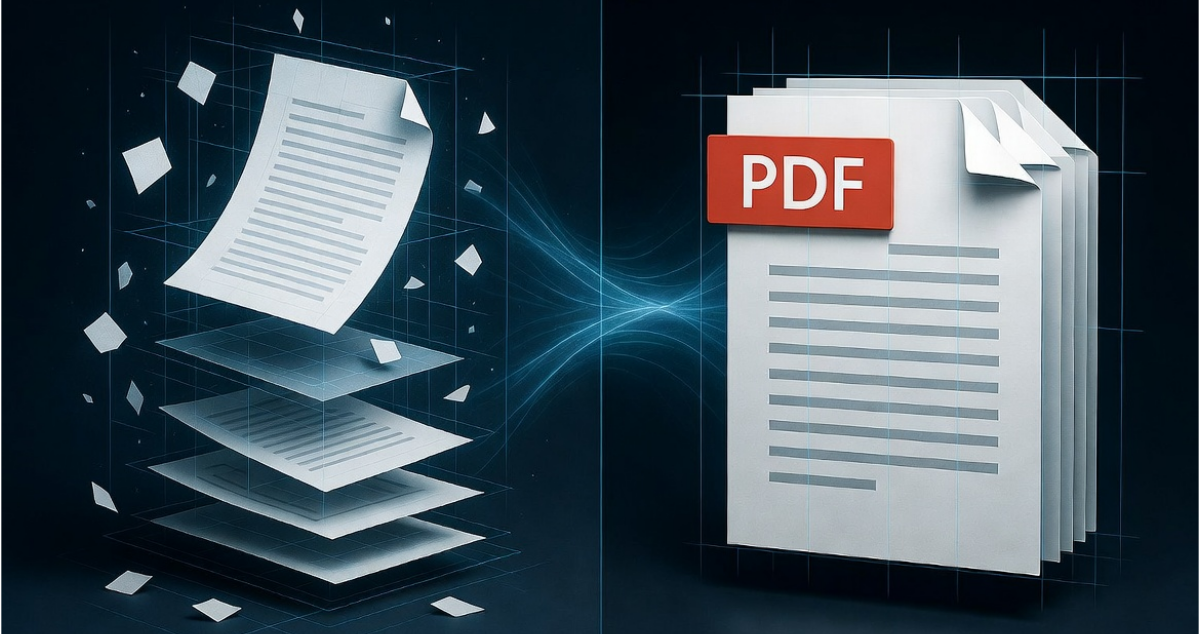
PDFs were designed as final documents, not editable ones. The format works like the digital equivalent of printed paper: once generated, it should look the same on any computer without changes. This immutability philosophy is an advantage for distribution but a problem for organization.
Internally a PDF is a structure of linked objects. Each page is an object that contains references to fonts, images and vector content. When you try to move page 5 to the end of the document, you are not simply cutting and pasting: you are rewriting the file's internal reference table, updating indexes and recalculating byte positions.
Mobile scanners make things worse because they generate a new PDF for each scanned page. There is no standard way for a scanning app to know whether you are scanning a 50-page document or 50 one-page documents. The result is folders full of individual PDFs you have to combine by hand.
Traditional online tools add another problem: uploading 50 PDFs of 2 MB each means transferring 100 MB to external servers, waiting for processing, and downloading the result. On a slow connection this can take 15-20 minutes. With sensitive documents (contracts, payslips, medical records) you are sending private information to companies that may store it indefinitely.
The real problem: order vs. merge
Merging PDFs is technically easy: concatenate the internal structures of several files into one. The real problem is the order. When you upload 20 files to a web tool, processing order depends on how you selected them, how your file system sorted them, or pure chance.
⚠️ The typical scenario: you select the 20 PDFs from your folder, upload them to an online converter, and find out the result has pages 1, 10, 11, 12... instead of 1, 2, 3, 4. This happens because systems sort alphabetically by filename, and "10" comes before "2" in alphabetical order (because "1" < "2" as characters).
The solution needs an interface that shows the files before merging them and lets you drag them to set the right order. Few online tools offer that, because it requires loading all the PDFs into browser memory before processing them.
How PDFs Work Internally
Understanding a PDF's internal structure helps explain why some operations are instant and others take minutes. A PDF has several main components:
| Component | Purpose |
|---|---|
| Header | States the format version (PDF 1.4 to 1.7) |
| Body | Contains every object: pages, fonts, images, metadata |
| xref table | Index saying where each object starts inside the file |
| Trailer | Points to the xref table and to the root object |
When you merge two PDFs, the technical process is: read both xref tables, renumber the objects of the second PDF so they do not collide with the first, concatenate the bodies, and build a new unified xref table. All this happens without rendering the pages: the content of each page does not matter, only its object structure.
That is why merging PDFs is a fast operation: you do not process visual content, you only move pointers and references. A 100-page PDF with high-resolution photos merges just as fast as one with 100 pages of plain text.
Reordering pages inside an existing PDF is even more efficient. You only change the order of references in the page catalog without touching the content objects. That is why tools like DoctVault can reorder documents with hundreds of pages in under a second.
Operations that DO require heavy processing
Convert PDF to image
Requires rasterizing each page: interpreting the drawing commands and producing pixels. A 100-page PDF can take several minutes to convert into 100 JPGs.
📉 Compress PDFs with images
Requires extracting each image, re-compressing it with optimized JPEG, and placing it back. If the PDF has 50 photos of 5 MB each, you are processing 250 MB of image data.
🔤 Apply OCR
The most intensive operation: each page has to be analyzed pixel by pixel to detect characters. A 100-page document can take 5-10 minutes to process with OCR.
Fast operations (they manipulate structure, not content):
Merge, split, reorder, delete pages. You can process huge documents almost instantly with client-side tools.
Tutorial: Merge Multiple PDFs in the Correct Order
The process to merge PDFs correctly has three phases: selection, ordering, and merge.
📋 Phase 1: Prepare the files
Before merging, organize the source files on your computer. Rename the PDFs with numeric prefixes if you can:
02-index.pdf
03-chapter1.pdf
04-chapter2.pdf
This makes them easy to identify visually and guarantees the right order if the tool sorts alphabetically.
📋 Phase 2: Load and order
- Open DoctVault Merge PDFs in your browser
- Drag all the PDFs into the upload area or use the file picker
- The tool shows thumbnails of the first page of each PDF so you can spot them visually
- Drag the files to set the right order
- Check the order by looking at the thumbnails
📋 Phase 3: Merge and download
- Press "Merge PDFs"
- Processing happens in your browser (the files are not uploaded to any server)
- Typical time: 20 PDFs of 1 MB = 2-3 seconds, 50 PDFs of 5 MB = 8-10 seconds
- The resulting PDF downloads automatically
- Open it to check all pages are there and in the right order
Tutorial: Reorder Shuffled Pages
Sometimes the problem is not merging separate files but reorganizing an existing PDF where the pages are in the wrong order. This often happens with scanned documents where sheets were fed in the wrong sequence.
1. Identify the mess
Open the problematic PDF in any viewer and go through it page by page noting what should go where. For example: "current page 3 should be page 1, current page 1 should be page 5". For long documents, identify blocks instead of individual pages.
2. Reordering process
Open DoctVault Reorder Pages and load the PDF. The tool shows thumbnails of every page in a grid. Drag the pages to their correct positions. To move several pages, select multiple ones (Ctrl+click or Shift+click) and drag them together.
3. Apply changes
Once you are happy with the order, press "Apply changes". The PDF is regenerated with the pages in the new order and it downloads automatically.
Tutorial: Delete Unnecessary Pages
Scanned documents often include pages that should not be there: blank sheets between sections, pages duplicated by scanner errors, or unrelated content that slipped into the batch.
Step-by-step process:
- Open DoctVault Delete Pages and load the PDF
- The tool shows thumbnails of every page with selection checkboxes
- Mark the pages you want to remove by clicking on them
- You can select ranges by holding Shift: click on page 5, Shift+click on page 10 selects pages 5-10
- Review the selection before confirming (the counter shows how many will be removed)
- Press "Delete selected" to generate the PDF without those pages
Professional Workflows
People who handle documents regularly build optimized workflows. These patterns save time and reduce mistakes.
📚 Mass digitization workflow
To scan long documents (case files, historical archives, books):
- Scan all the content in manageable batches (20-30 pages per session)
- Name each batch with a sequential prefix as you scan
- Merge the batches in order at the end of each session
- Review the merged document to spot errors
- Fix the order or remove problem pages
📋 Case file compilation workflow
To build case files that combine documents from several sources:
- Create a temporary folder with every source document
- Rename each file with a numeric prefix (01-application.pdf, 02-report.pdf)
- Merge all the PDFs in alphabetical order
- Add a cover or index if needed
- Protect the final document if it contains sensitive information
📖 Exam prep workflow
For exam candidates preparing huge study packs:
- Organize the material by topic into separate folders
- Merge all the PDFs of each topic into a single document
- Build a master index with references to each topic
- Compress the resulting documents for tablet or e-reader
- Back up intermediate versions
For documents of this size (500+ MB), local processing is almost mandatory: uploading to external servers takes hours.
The Advantage of Local Processing
Traditional PDF manipulation tools work in the cloud model: you upload files to their servers, they process, and you download the result. This model has privacy, speed, and connection dependency problems.
In-browser local processing uses JavaScript and WebAssembly to run the same operations directly on your device. The files never leave your computer or phone. There is no data transfer: a 50 MB PDF is processed without using a single byte of mobile data.
Absolute privacy by technical design
It is not that the company promises not to read your files: it is that it is technically impossible for them to see them because they never receive them. Especially important for sensitive documents like employment contracts, medical records or tax returns.
Real time comparison
To merge 10 PDFs of 5 MB each (50 MB total):
| Method | Total Time |
|---|---|
| Cloud tool + fast connection (100 Mbps) | 45-60 seconds |
| Cloud tool + slow connection (10 Mbps) | 4-6 minutes |
| Local tool (DoctVault) | 5-8 seconds |
Integration with Other Tools
Organizing PDFs often needs extra operations that go alongside merging and reordering.
Before merging: optimize images
If your PDFs contain high-resolution images, the merged document can end up too heavy. An iPhone photo at maximum quality is 3-5 MB. A PDF with 20 of those photos weighs 60-100 MB. Fix: optimize the images before converting them to PDF, or use PDF compression after merging.
🔐 After merging: protect the document
Complete case files often contain sensitive information. Watermark adds semi-transparent text ("DRAFT", "CONFIDENTIAL") across every page. Password protection encrypts the whole PDF so it only opens with the right password.
✍️ For forms: sign the document
If the organized case file needs a signature (contracts, authorizations), the signing tool lets you add a digitized handwritten signature. You sign with your finger on mobile or with a mouse on desktop.
Specific Use Cases
🎓 Students: organize course notes
Scenario: 15 PDFs of notes, 8 of exercises, 5 of past exams. Total: 28 unordered files.
Result: a single 200-500 page PDF with all the course material. You can search it, carry it on a tablet, and print it if you need to.
💼 Freelancers: prepare tax paperwork
Scenario: every quarter you have to send your accountant issued invoices, received invoices, bank statements and expense receipts. That is 40-60 documents per quarter.
Result: 4 organized PDFs instead of 60 loose files. Your accountant will thank you.
🏢 Administrative staff: build complete case files
Scenario: a case file with the original application, supporting documents (ID, certificates), technical reports and resolutions. Can be 20-100 pages from multiple sources.
Result: a complete digital case file that is easier to consult, archive and send than physical folders with loose papers.
Frequently Asked Questions
How many PDFs can I merge at once?
In DoctVault the limit is 20 PDFs on desktop and 10 on mobile, with a combined total maximum of 100 MB. For larger volumes, merge in batches and then merge the resulting batches.
Do PDFs lose quality when merged?
No. Merging PDFs is a structure-copy operation, not a re-render. Images, fonts and content are copied bit by bit without modification. The resulting PDF has exactly the same quality as the originals.
Can I merge password-protected PDFs?
Only if you know the password. Encrypted PDFs must be decrypted before being merged. Remove the password (you need the original one), merge the documents, and re-protect the result if necessary.
Does the page order affect the file size?
Not significantly. The size of a PDF depends on the content (images, fonts), not on the order. Reordering pages can change the size by kilobytes due to the reorganization of the reference table, but the difference is imperceptible.
Can I undo after merging or reordering?
There is no undo function once the file is downloaded. That is why it is important to check the order before processing and keep the original files until you confirm the result is correct.
Does it work with scanned PDFs (images)?
Yes. Scanned PDFs contain images instead of vector text, but the structure is the same. They merge and reorder like digitally generated PDFs. The only difference is that you cannot search text inside them (unless you apply OCR).
Can I merge PDFs from mobile?
Yes. Browser-based tools work the same on mobile as on desktop. The interface adapts to the touch screen: you drag files with your finger to reorder them.
What if a PDF is corrupted?
If one of the source PDFs is damaged, the tool shows an error when trying to load it. Identify the problematic file and leave it out of the process. You can try to recover it with specialized PDF repair tools.
Are hyperlinks and bookmarks preserved when merging?
Internal hyperlinks (those pointing to pages within the same document) may break when merging because page numbers change. External hyperlinks (URLs) are preserved. Bookmarks are preserved but their destinations may become outdated.
Can I add blank pages as separators?
Not directly in the merge tool. Create a PDF with a blank page using any word processor and add it to the list of files to merge in the position where you want the separator.
Conclusion: Efficient Digital Organization
Managing PDF documents should not be a frustrating task that eats up hours. With the right tools, merging 50 PDFs takes 10 seconds, reordering a 100-page document takes 30 seconds, and removing unnecessary pages is a few clicks.
The key is using tools that process locally in your browser. You skip upload and download waits. You get absolute privacy for sensitive documents. And you do not depend on an internet connection once the page is loaded.
For regular workflows (quarterly tax prep, case file compilation, study material organization), spending time setting up a naming and folder system saves hours of reordering later.
🔗 Organization tools at DoctVault:
- Merge PDFs in the right order
- Split PDF into independent parts
- Reorder pages by dragging thumbnails
- Delete unnecessary pages
- Compress the result to reduce size
- Protect with password or watermark
- Sign the final document
Was this article helpful?
Share it and help more people manage their PDFs securely
Related Articles

Reduce a PDF by 70%
Compress heavy PDFs without visible quality loss to send by email or WhatsApp.

Sign a PDF with Your Finger on Mobile
Learn how to sign PDF documents straight from your phone with just your finger.

The Dangers of Online PDF Converters
Find out why uploading your PDFs to online converters can put your privacy at risk.