JPG vs PDF: When to Use Each Format for Your Digital Documents
You are at the bank opening an online account. They ask you for "proof of address". You have a photo of your electricity bill that you took with your phone. You upload it as JPG and the system rejects it: "Invalid format, please upload a PDF". You open Google, search for "convert JPG to PDF", click on the first result, upload your bill with all your personal data to an unknown server, wait, download the PDF, and upload it to the bank. Mission accomplished, but you just gave away your address and electricity consumption data to a company you do not know.
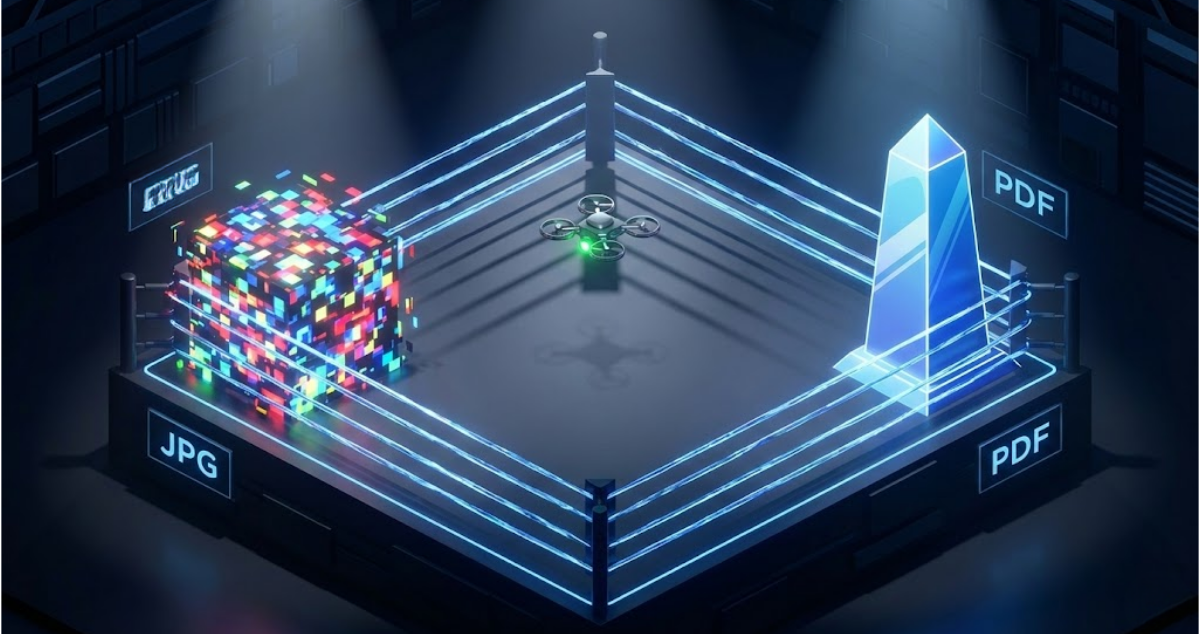
This situation happens a lot. The confusion between JPG and PDF is not just a technical nuisance: it has real consequences for privacy, print quality and compatibility with official systems. Knowing when to use each format saves you time, protects your data and avoids rejections in important processes.
The fundamental difference: pixels vs container
The confusion between JPG and PDF happens because both can show an image on screen. But inside they are completely different animals.
JPG: the pixel map
A JPG file is a grid of color dots. Each dot (pixel) has a numeric value that represents its exact color on the RGB spectrum. A photo of 4000×3000 pixels holds 12 million of those data points, each stored as three numbers (red, green, blue).
When you zoom into a JPG beyond its original resolution, you see the individual pixels as blurry blocks. There is no extra data the computer can invent: what is there is what is there.
Lossy compression
The JPG format uses lossy compression. A 12-megapixel photo without compression would weigh 36 MB. With JPG compression at quality 85, it weighs 2-4 MB. The trick is removing fine detail in areas of uniform color (sky, walls) while keeping the edges sharp. That compression is irreversible.
PDF: the universal container
A PDF is not an image. It is a container that can hold:
- Vector text (scales infinitely)
- Raster images (like JPG)
- Fonts
- Interactive forms
- Digital signatures
- Structured metadata
When you open a PDF with a "photo" of your ID card, inside the file there is the original JPG image plus instructions about how to place it on the page, at what size to show it and what margins to leave.
Text stays as text
The advantage of a PDF is that text stays as text. You can select it, copy it, search it. If you print it at any size, the letters stay sharp because they are math vectors, not fixed pixels.
A PDF can hold multiple pages in a single file. A JPG is always a single image. That difference matters for multi-page documents like contracts, reports or files.
When to use JPG
JPG is the best fit when the content is purely photographic and does not need later editing.
Photos for social media
Instagram, Twitter and Facebook process internally whatever image you upload. It does not matter if you upload a 50 MB PNG: the platform will re-compress it to a web-optimized JPG. Uploading directly as JPG quality 85 saves you upload time without any real loss in final quality.
Web images that do not need transparency
Browsers render JPG faster than PNG because there is less data to process. For product photos, banners with photos or image galleries, JPG is the most efficient format. You only need PNG if the image has transparent areas (logos placed on variable backgrounds).
Bulk storage of personal photos
If you have 10,000 holiday photos, keeping them uncompressed would take several terabytes. JPG quality 90 keeps excellent visual quality while cutting storage by 80%. For photos you will only view on screen occasionally, that is the right balance between quality and space.
Quick sending via messaging
WhatsApp automatically compresses the images you send. If you send a 20 MB PNG, WhatsApp will turn it into a compressed JPG of around 200 KB. The result will be the same as if you had sent JPG directly, but you will have used more mobile data to upload.
When to use PDF
PDF is required when the document needs structure, readable text or universal compatibility.
Official documents and procedures
Public administrations require PDF because it guarantees that the document looks identical on any computer. A Word file can change layout depending on the Office version installed. A PDF looks exactly the same on Windows, Mac, Linux, phone or tablet.
Document management systems
The document management systems of banks, insurance companies and public administrations are built to process PDFs. Many simply reject other formats even though they could technically open them.
Multi-page documents
A 20-page contract should be a single PDF file, not 20 loose JPGs. The PDF keeps the page order, allows navigation with bookmarks, and can be digitally signed as one unit.
If you have 20 photos of a scanned document, the solution is to turn them into a single PDF that groups every page in the right order.
Documents with text that must be readable
A JPG of a contract is an image. You cannot select the text, you cannot search it, you cannot copy it. If you need to reference a specific clause, you have to read the whole document visually.
A PDF generated from Word or any word processor keeps the text as text. You can search "clause five", select a paragraph, copy it into another document. That is critical for long legal documents.
Professional printing
Print shops work with PDF because the format keeps professional color information (CMYK), exact resolution (DPI) and page bleed. A JPG in RGB may change color when printed because the color space is different.
The special case: photos of documents
Here is the most common confusion. You have a photo of your ID card taken with your phone. Is it JPG or PDF? It is JPG. But the administration is asking for PDF? Yes. So you have to convert it? Yes.
Converting does not improve quality
Converting JPG to PDF does not improve the image quality. If your photo is blurry, the resulting PDF will have the same blurry photo inside. What changes is the container: now the image is wrapped in a format the administrative systems accept.
A correct conversion embeds the JPG image inside a PDF without re-compressing it. Badly built tools convert the JPG into a lower-quality image when creating the PDF. That is why it matters to use tools that process it right, like the image-to-PDF converter from DoctVault.
The excessive size problem
Modern phone photos have absurdly high resolutions for documents. A current iPhone takes photos of 12-48 megapixels. A photo of an ID card at 4000×3000 pixels weighs 3-5 MB. If you convert that photo to PDF without optimizing it, the PDF will weigh the same.
But government online portals have 2-5 MB file size limits. Your 5 MB PDF with the ID card photo will be rejected.
Smart solution
The solution is not to crush the quality until it fits. It is to resize smartly: an ID card does not need 4000 pixels wide to be readable. At 1200 pixels wide (enough to print at real size in high quality), the file weighs 200-400 KB while keeping every visible detail.
If you need to reduce the size of PDFs you already have, the most practical option is to export the pages as images with PDF to JPG and rebuild the PDF with adjusted quality - it cuts the size without hurting readability.
Image quality: the metric that matters
Both JPG and PDF can hold high- or low-quality images. The format does not decide the quality: that is decided by the original resolution and the compression level applied.
Resolution for screen vs print
Screens show images at 72-150 PPI (pixels per inch). A 24-inch Full HD monitor has roughly 92 PPI. Any image with more than 100 PPI at its display size will look perfect on screen.
Professional printers work at 300 DPI (dots per inch). To print a photo at 10×15 cm with photographic quality, you need an image of at least 1200×1800 pixels.
Common confusion
The same image can look perfect on screen and pixelated when printed. An 800×600 JPG fills a phone screen without issues, but printed at postcard size it looks blurry.
The myth of "converting to PDF improves quality"
No. Converting a blurry JPG to PDF does not make it sharp. The PDF just holds the same blurry image in another wrapper. If the original photo is out of focus, the only solution is to take another photo.
What CAN improve when converting to PDF is the document structure: adding correct margins, orienting pages, combining several images in a logical order. But the quality of each individual image depends only on the original capture.
Privacy: the forgotten factor
Every time you convert a file on an external website, you are sending that file to third-party servers. For personal documents (ID card, payslips, contracts, invoices), that has serious consequences.
The metadata you do not see
Phone photos contain EXIF metadata: exact date and time, GPS coordinates where the photo was taken, device model, camera settings. A photo of your ID card taken at home reveals your home address.
⚠️ Real danger
By uploading that photo to an online converter, you are giving away your ID card + your address + the time you were at home. All bundled, ready for whoever wants to use it.
Conversion tools that process locally in your browser, such as DoctVault, do not receive that data because the file never leaves your device. Processing happens in the RAM of your computer or phone, and the result is downloaded directly without going through external servers.
GDPR and your documents
The General Data Protection Regulation forces companies to tell you what they do with your data. But let's be honest: nobody reads the privacy policy of a free PDF converter they use once.
These sites can store your files temporarily (hours or days), use them to train text recognition systems (your ID card teaching an AI to read documents), or simply fail to delete them because of technical sloppiness.
The safest solution is not to send sensitive documents to external services. Use tools that process locally or software installed on your computer.
Optimizing images before creating PDFs
If your PDFs weigh too much because they contain high-resolution photos, the problem is in the original images, not in the PDF format.
The professional solution is to optimize the images before placing them inside the PDF. A 5 MB photo reduced to 500 KB before converting produces a PDF 10 times lighter than optimizing the PDF afterwards.
Optimal workflow
The best workflow for documents with many images is: take photos with the phone → optimize the size with an image compression tool → convert to PDF with the right tool. The result is a professional PDF that weighs a fraction of what you would get without optimizing.
To optimize images while keeping visual quality, FormatVault offers format conversion with precise quality control. You can convert your JPG photos to WebP (30% lighter) or lower the JPEG quality to 85 (enough for any document) before creating the final PDF.
Practical cases solved
Case 1: Photo of the purchase receipt for a return
Situation: You bought online, you need to return the product, and the shop asks for "invoice or receipt in PDF".
Solution: Photograph the receipt with good light (avoid shadows and glare). Use image-to-PDF conversion to generate the document. If the receipt is long, take several photos and merge them into a single multi-page PDF.
Common mistake: Sending the JPG photo directly. Many return systems only accept PDF.
Case 2: Scanned multi-page file
Situation: You have 15 pages of a contract scanned as separate images. You need to send the full contract.
Solution: Use merge PDFs if you already have each page as an individual PDF, or convert all the images into a single multi-page PDF. Check the order is correct before sending.
Common mistake: Sending 15 separate attachments. The recipient can get the order wrong.
Case 3: Quote with product photos
Situation: You are self-employed and you need to send a quote that includes photos of the materials you are going to use.
Solution: Create the quote in Word or similar, including the photos. Export to PDF with medium quality so it is easy to send by email.
Extra tip: Add a watermark with "CONFIDENTIAL QUOTE" to stop it being used to negotiate with your competition.
Case 4: ID card for opening a bank account
Situation: The bank asks for "copy of the ID card as PDF, maximum 2 MB, both sides in a single file".
Solution: Photograph both sides of the ID card on a white background with good light. Use the ID card on one sheet tool, which automatically generates an A4 PDF with both sides aligned and an optimized size.
Common mistake: Pasting the two photos into Word and exporting to PDF. The result usually weighs 8-10 MB (rejected because of the limit).
Case 5: Design portfolio to send to a client
Situation: You are a designer and you want to send examples of your work. You have 20 designs as high-resolution JPGs.
Solution: Optimize the images first (quality 85 is enough for on-screen viewing). Convert to a multi-page PDF. The client can browse comfortably without opening 20 separate files.
Protection: If those are designs you have not been paid for yet, add a watermark "DRAFT - DO NOT REPRODUCE" to stop them being used without permission.
Technical mistakes to avoid
Mistake 1: Re-compressing JPGs over and over
Every time you open a JPG, edit it and save it, new compression is applied. After 5-10 cycles, the damage is visible: block artifacts appear, colors degrade, edges blur.
Solution: If you need to edit an image multiple times, work in a lossless format (PNG, TIFF) and export to JPG only at the end.
Mistake 2: Converting PDF with text to JPG
A PDF generated from Word has perfect vector text. If you convert it to JPG, that text is rasterized: it turns into fixed pixels. Now you cannot select it, and if you zoom the document, the letters look blurry.
Rule: Only convert PDF to JPG if you need an image of a specific page (for example, to drop it into a slide deck). For everything else, keep the PDF.
Mistake 3: Using excessive resolution "just in case"
Scanning a document at 600 DPI "so it looks good" produces files 4 times heavier than at 300 DPI, with no visible improvement on screen or in standard printing. For text documents, 150 DPI is enough. For photos that will be printed, 300 DPI.
Mistake 4: Ignoring page orientation
Phone photos sometimes store the orientation in metadata instead of rotating the pixels for real. Some PDF viewers read that metadata correctly; others do not. The result: you send a document that looks fine on your phone, but the recipient gets it rotated 90 degrees.
Solution: Use tools that apply the actual rotation to the pixels, not only to the metadata.
Summary table: JPG vs PDF
| Feature | JPG | |
|---|---|---|
| Content type | Raster image only | Text + images + forms |
| Pages | One per file | Multiple in one file |
| Selectable text | No | Yes (if native PDF) |
| Scalability | Loses quality when enlarged | Text always sharp |
| Compression | Lossy (irreversible) | Configurable |
| Typical use | Photos, web, social media | Official documents, printing |
| Administrative acceptance | Limited | Universal |
| Post-editing | Hard without degrading | Possible with the right tools |
Frequently asked questions
Can I convert any JPG to PDF?
Yes. Converting is just embedding the image inside a PDF container. There are no technical restrictions. The important part is using tools that do not re-compress the image during the process.
Does the PDF weigh more than the original JPG?
Slightly more, because it adds document structure (headers, metadata, page information). A 500 KB JPG produces a PDF of roughly 510-520 KB. The difference is negligible.
Can I convert PDF to JPG without losing quality?
It depends. If the PDF contains an image (such as a photo of an ID card), you can extract it at its original resolution. If it contains vector text, converting to JPG rasterizes it at a fixed resolution: if you pick a low resolution, you will lose sharpness.
Which format is better for long-term document archiving?
PDF/A is the archival standard. It is a PDF variant designed for preservation: it includes all needed fonts, does not allow external links, and guarantees the document will look the same 50 years from now.
Do JPGs have a size limit?
Technically the format supports images up to 65,535 × 65,535 pixels (4.3 gigapixels). In practice, the limits are imposed by the software you use and the available RAM.
Why do some sites only accept PDF?
Mainly for standardization. A system that processes a large volume of documents daily needs a predictable format. PDF guarantees that the document has defined dimensions (A4, letter), correct orientation, and can be rendered without external dependencies.
Can I digitally sign a JPG?
Not in a standard way. Digital signatures were designed for PDF, which has the structure to hold them. A signed JPG would need non-standard metadata that most software would not recognize.
What do I do if my PDF with an ID card photo weighs more than 2 MB?
Reduce the internal images before generating the PDF (quality 80-85% is enough for readable text). A 5 MB PDF with an ID card photo can be reduced to 300-500 KB without any visible loss of legibility.
Conclusion: use the right format for each situation
Choosing between JPG and PDF is not random. JPG is for images that will be seen on screen: photos, web graphics, screenshots. PDF is for structured documents: texts, forms, official files.
When an administration or a company asks for PDF, it is not a whim: it is because their systems are built to process that format. Converting properly saves you rejections and rework.
Professional workflow
The professional workflow is: capture at enough quality (not excessive) → optimize the size if needed → convert to the required format → check the result before sending. With the right tools, the whole process takes less than a minute.
Converting between formats should be done with tools that respect the original quality and, ideally, process locally to protect your privacy. DoctVault converts images to PDF without sending your files to external servers. FormatVault reduces the size of your images before converting them.
Related tools on DoctVault:
- • Convert JPG to PDF - Turn images into a PDF document
- • Protect PDF with password - Encrypt confidential documents
- • Merge PDFs - Combine multiple documents into one
- • ID card on one sheet - Both sides of the ID on an optimized A4 PDF
- • Sign PDF - Add a handwritten digital signature
- • Watermark - Protect documents with semi-transparent text
Image optimization resources:
- • FormatVault: Image converter and optimizer - Reduce photo size before creating PDFs
Was this article helpful?
Share it and help more people manage their PDFs securely
Related Articles
How to Scan Your ID Card Into a Single PDF Sheet
Complete tutorial to digitize both sides of your ID into a single document.
How to Compress PDF for Email and WhatsApp
Complete guide to reduce the size of your PDFs without losing quality.
How to Merge and Sort PDFs: Complete Guide
Learn how to combine multiple PDF documents into one organized file.